How to Install Summertime Saga Mod on PC Windows & Mac Guide 2026
The desktop version is the most stable way to play — but a few specific steps trip up almost every first-time install. This guide covers the full process for both Windows and macOS, plus the exact fixes for the most common errors.
Quick Recommendation: Download the correct ZIP for your platform (Windows or macOS), extract the full archive before launching anything, approve the security prompt on first run, and keep your save folder backed up before any update. Most install failures come from running the game directly inside an unextracted ZIP or skipping the one-time security approval step.
01System Requirements
The desktop build is a native Ren’Py application — it runs directly without an emulator. Requirements are low by modern standards, but the game does load a large asset library, so meeting the RAM minimum matters.
- Windows 7, 8, 10, or 11
- 4 GB RAM minimum — 8 GB recommended for smooth scene transitions
- 2 GB free disk space
- Updated graphics drivers
- A program capable of extracting ZIP archives (Windows built-in works fine)
- macOS 10.13 High Sierra or later
- 4 GB RAM minimum
- 2 GB free storage
- ZIP extraction (built-in Archive Utility is sufficient)
- Willingness to approve an unidentified developer warning once
On lower-spec hardware, the main symptom is a slow initial load with a black screen that lasts longer than expected — the game is loading its asset library, not crashing. Wait at least 30 seconds before assuming something went wrong. If load times are consistently slow, it may be worth reviewing how different desktop environments handle the rendering workload, particularly on older hardware.
02Windows Installation — Step by Step
The process is straightforward, but two steps catch most people: running from inside the ZIP instead of extracting first, and dismissing the SmartScreen warning incorrectly.
Confirm before proceeding:
- ✓The file size matches what’s listed on the download page
- ✓The download completed without interruption or browser timeout
- ✓You are not downloading from a third-party mirror
- 1Right-click the ZIP file
- 2Select “Extract All”
- 3Choose a destination — your desktop or a dedicated games folder works well
- 4Wait for extraction to complete fully before touching anything
- 1Open the extracted folder
- 2Double-click the .exe file
- 3If Windows SmartScreen appears, click More Info
- 4Then click Run Anyway
03macOS Installation — Step by Step
The macOS version is a native .app build distributed inside a ZIP archive. The installation itself takes under two minutes — the only friction comes from Gatekeeper, Apple’s security layer, which blocks apps from unidentified developers by default.
- ✓Confirm the download finishes completely
- ✓Check the file size matches the listing before continuing
Double-click the ZIP file. macOS Archive Utility extracts it automatically. You should see a .app file inside the resulting folder.
Drag the .app file into your /Applications folder. Running it from Downloads or your desktop can occasionally produce persistent permission errors on some macOS versions.
If macOS shows “App cannot be opened because it is from an unidentified developer,” do not click Move to Trash. Instead:
- 1Open System Settings
- 2Navigate to Privacy & Security
- 3Scroll down and click Open Anyway next to the app name
- 4Confirm the dialog that follows
xattr -cr (with a trailing space), then drag the .app file directly into the Terminal window — this pastes the full file path automatically. Press Enter. Try launching again. This clears the quarantine attribute macOS places on downloaded files.04Common Installation Errors & Fixes
Most desktop errors fall into a small set of repeating patterns. If something went wrong after following the steps above, check against these before re-downloading.
05Updating Without Losing Save Data
Save files on the desktop version are stored separately from the game executable, which makes updates straightforward — but players who overwrite their existing folder without backing up first lose everything. The process below avoids that.
- Download the new version ZIP
- Extract it into a new separate folder — do not overwrite the existing installation
- Locate the save folder inside your current version directory (typically a folder named
savesor inside the game’s AppData/Roaming path on Windows) - Copy the save files to a backup location outside either game folder
- Paste the saves into the matching directory inside the new version
- Confirm the new version launches and loads the save correctly before deleting anything old
06PC vs Android — Which Is Actually Better?
Desktop has a clear set of advantages, particularly for longer play sessions. The main ones:
- Higher rendering resolution with no scaling artifacts
- No “Unknown Sources” permission toggles required
- Save files are accessible and easy to back up
- No background process throttling or battery-related performance drops
- Screen size makes the visual novel format significantly more comfortable
Android is the more convenient option for short sessions, but newer OS versions on certain manufacturers — particularly those running heavily customised Android skins — can occasionally introduce storage permission conflicts or restricted settings blocks that interrupt the install flow. If you’re running into those on a Samsung, Xiaomi, or similar device, the Android 15 compatibility guide covers the device-specific fixes in detail.
| Factor | PC / Mac | Android |
|---|---|---|
| Install friction | Low (one-time security approval) | Medium (Unknown Sources + skin variations) |
| Save management | Easy — accessible file system | Harder — restricted storage paths on newer Android |
| Performance | Consistent across sessions | Variable — background throttling, RAM limits |
| Screen experience | Better — native resolution rendering | Adequate — depends on device screen quality |
| Portability | Desktop only | Play anywhere |
07Security Warnings — What They Mean
Both Windows SmartScreen and macOS Gatekeeper flag the game on first launch. This happens because the distributed build is not submitted to Microsoft or Apple’s signing programs, which are paid commercial processes — not indicators of safety.
- Windows SmartScreen: Shows “Windows protected your PC” — click More Info → Run Anyway. After the first approval, it does not reappear.
- macOS Gatekeeper: Shows “App cannot be opened” — approve once through Privacy & Security → Open Anyway.
Antivirus behaviour can vary across security software and system configurations. If a security tool continues to block the application after adding an exclusion, checking the software’s quarantine log is usually the fastest way to identify which specific file is being flagged.
08Frequently Asked Questions
Do I need to extract the ZIP before launching?
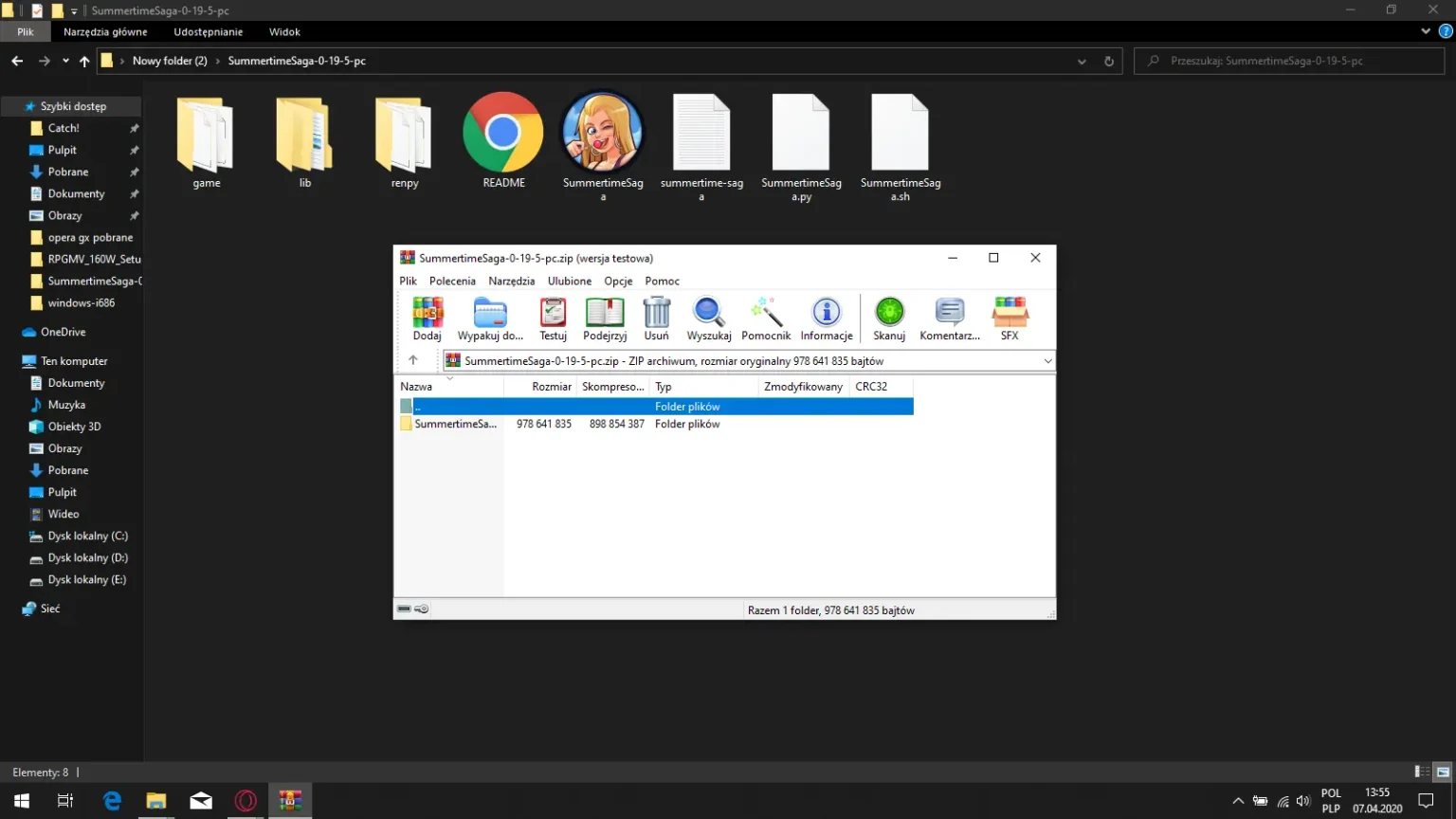
Yes — always. Windows lets you browse ZIP contents and even preview files without extracting, which fools a lot of people into double-clicking the .exe from inside the archive. That will always error. Extract the entire folder to disk first, then launch from there.
Does it run on Windows 11?
Yes, without any additional configuration. The only thing that changes on Windows 11 is that SmartScreen’s visual presentation is slightly different — the process for approving it (More Info → Run Anyway) is the same.
Does the macOS version run natively on Apple Silicon (M1/M2/M3)?
The Ren’Py engine supports Apple Silicon through Rosetta 2 translation on machines that have it enabled. Performance is generally reported as smooth, though Rosetta 2 must be installed if it wasn’t set up during macOS first-run. Users on M-series Macs have not widely reported significant issues.
Why does my antivirus keep removing the game file?
Antivirus software flags unsigned applications as potentially unwanted programs by policy, not because it detected specific malicious code. The fix is adding the extracted game folder to your antivirus exclusion list before launching. Restoring the file without adding an exclusion just leads to the same removal on the next scan.
Do I need an emulator to run it on PC?
No. The ZIP builds are native Windows and macOS applications — no emulator is needed or recommended for desktop. Emulators are for running the Android version on a PC, which introduces additional setup steps that the native desktop build avoids entirely.
Will my saves survive a version update?
Yes, if you move them correctly. Save files are stored separately from the game executable, so extracting a new version into a clean folder and copying your saves across keeps all progress intact. The full process is covered in the save transfer guide linked above.
Final Notes
The desktop build is the most predictable way to play — no storage permission variations, no OS skin interference, no battery throttling. Extract the full ZIP before launching, approve the one-time security prompt on your platform, and keep a save backup before updating. Those three habits cover the vast majority of issues players run into.
For broader gameplay resources, character guides, and route information, the main hub covers the rest.