Safe APK Installation Guide for Android Users
Android is popular partly because it gives users more freedom than most mobile platforms. Unlike many operating systems, Android allows you to install apps manually using APK files instead of relying only on the Google Play Store.
For gamers and advanced users, this flexibility is extremely useful. You can install apps that are not available in your region, try beta versions before official releases, or install updates that haven’t reached the Play Store yet.
However, installing APK files incorrectly can also expose devices to risks like malware, fake applications, or modified software that collects personal data.
Table of Contents
What Is an APK File?
APK stands for Android Package Kit, the file format used by Android to distribute and install applications.
Every Android app is packaged as an APK file. When you download an app from the Play Store, Android automatically installs an APK in the background.
An APK file usually contains several important components:
- The app’s code
- Images and resources used by the application
- Installation instructions
- Security certificates verifying the developer
Why People Install APK Files
Many Android users install APK files for legitimate reasons. The most common ones include the following.
Access apps not available in certain regions
Some games launch in limited countries before becoming globally available. Installing the APK allows users to access them earlier.
Installing older versions of apps
Occasionally a new update introduces bugs or removes features. APK files allow users to install previous versions.
Trying beta versions
Developers often release testing versions of apps through APK downloads before publishing them officially.
Faster access to updates
In some cases, updates appear on developer websites or APK repositories before they are released on the Play Store.
Potential Risks of APK Downloads
While APK installation is normal for many Android users, downloading files from unknown sources can create problems.
Malware hidden in modified apps
Malicious developers sometimes modify legitimate apps and include harmful software.
Fake versions of popular games
Some websites host fake copies of well-known games to trick users into installing them.
Data tracking and spyware
Certain modified apps collect user information without permission.
Aggressive advertising software
Some APK files include adware that runs in the background.
These risks usually occur when users download files from unreliable websites.
How to Identify Safe APK Files
Before installing any APK, it is important to verify that the file is legitimate.
Check the source website
Trusted websites usually provide:
- version history
- developer information
- user feedback
- malware scanning
If a website provides almost no information about the app, it may not be trustworthy.
Verify the developer
If the APK claims to be from a well-known developer, check the developer’s official website. Many developers provide direct download links for beta builds.
Compare file details
Look at the version number, release date, and file size. If these details differ significantly from official releases, the file may be modified.
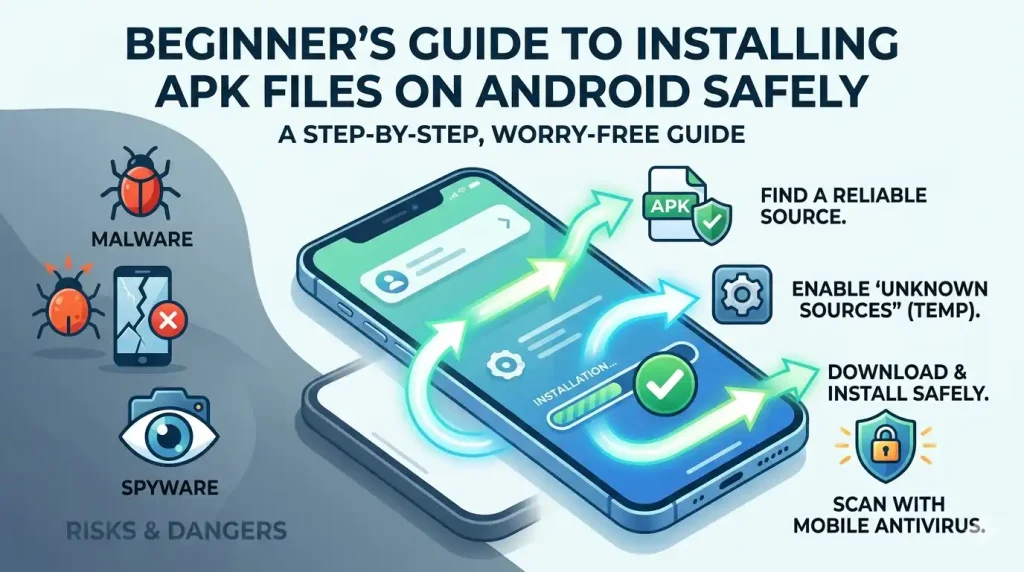
Scan the file before installing
Using an antivirus scanner or online malware scanner adds an extra layer of protection.
Step-by-Step Guide to Installing APK Files Safely
Installing an APK file is straightforward once you know the correct process.
- 1Download the APK file
Download the file from a trusted website. The file will normally appear in the Downloads folder.
- 2Enable installation from unknown sources
Android blocks manual installations by default. To allow installation:
- Open Settings
- Go to Security or Privacy
- Tap Install unknown apps
- Allow permission for your browser or file manager
This setting allows your device to install APK files outside the Play Store.
- 3Locate the file
Open your File Manager or Downloads folder and find the APK file.
- 4Start the installation
Tap the APK file and select Install. The process normally takes only a few seconds.
- 5Launch the app
After installation, the app will appear in your app drawer just like any other Android application.
Warning Signs of Dangerous APK Files
Recognizing suspicious downloads can help prevent security problems.
Some common warning signs include:
Tips to Keep Your Android Device Secure
Installing APK files safely also depends on good security habits.
Keep your device updated
Android security updates fix vulnerabilities that malware may exploit.
Use built-in security tools
Android devices include protection tools like Play Protect that scan installed apps.
Install only necessary apps
Installing too many unknown apps increases potential security risks.
Remove unused applications
Old or unused apps may become security risks if they are no longer maintained.
APK Installation vs Google Play Store
Both methods have advantages.
| Feature | APK Installation | Play Store |
|---|---|---|
| Region restrictions | No | Yes |
| Update speed | Often faster | Official release schedule |
| Security screening | Depends on user | Google verification |
| Installation process | Manual | Automatic |
For everyday apps, the Play Store remains the easiest option. However, APK installation provides flexibility when apps are unavailable or updates are delayed.
Final Thoughts
APK installation is one of the features that makes Android an open and flexible platform. It allows users to install apps outside the Play Store and access software that may not be available through official channels.
However, the responsibility for security also falls on the user. Downloading apps without checking their source can expose devices to malware, spyware, or modified applications.
By choosing trusted download sources, verifying app details, and reviewing permissions carefully, Android users can install APK files safely while enjoying the flexibility the platform provides.
Frequently Asked Questions
Is it legal to install APK files?
Can APK files damage my phone?
Why does Android block APK installations?
Do apps installed from APK update automatically?