Android Gaming Performance Tips (Boost FPS & Reduce Lag)
If you’ve ever played a game on your phone and felt it stutter, lag, or drop frames at the worst possible moment, you already know how frustrating mobile gaming can be when performance isn’t optimized.
The truth is, most Android devices — even mid-range ones — are capable of running games much smoother than they usually do.
The problem isn’t always the hardware. In many cases, it’s background apps, poor settings, or small system issues that quietly eat up performance. In fact, many players struggle with Android Game Errors and Fixes without realizing they are tied to performance.
You don’t need to root your phone or install risky tools to fix this. A few practical changes can noticeably improve how games run.
Table of Contents
Why Android Games Lag in the First Place
Before jumping into fixes, it helps to understand what’s causing the lag.
Android devices handle multiple processes at once. While you’re gaming, your phone may also be:
- syncing apps in the background
- running system updates
- managing notifications
- keeping multiple apps active
All of this consumes RAM and CPU power.
On top of that, games themselves can demand:
- high graphics processing
- stable memory usage
- consistent temperature control
When your device can’t keep up with all of that, you get:
- frame drops
- stuttering
- overheating
- delayed touch response
Close Background Apps (Biggest Immediate Boost)
This is the simplest fix — and most people ignore it.
Before launching a game:
- clear all recent apps
- stop heavy apps like browsers or video apps
- disable apps running in the background
Why this works:
Background apps continue using RAM and CPU, even if you’re not actively using them. Freeing that memory gives your game more resources.
Lower In-Game Graphics Settings
A lot of users keep graphics on high or ultra, then complain about lag. That’s the fastest way to kill performance.
Inside game settings, reduce:
- graphics quality
- shadow detail
- resolution
- effects
Enable Game Mode (If Available)
Many Android devices now include a built-in Game Mode or Game Booster. This feature usually:
- blocks notifications
- prioritizes CPU/GPU for gaming
- limits background activity
Check your phone settings or quick panel. On some devices, it activates automatically when you launch a game.
Free Up Storage Space
This one is underrated. Low storage can slow down your entire system, including games.
Try to keep at least:
Delete:
- old videos
- unused apps
- large downloads
Android needs free space for temporary files and smooth operation.
Restart Your Device Regularly
It sounds basic, but it works. Restarting your phone:
- clears RAM
- stops stuck background processes
- refreshes system performance
If you game daily, restarting once every day or two can keep performance stable.
Reduce Background Sync and Notifications
Apps constantly syncing in the background can affect gaming performance. You can:
- disable auto-sync for unused apps
- turn off unnecessary notifications
- restrict background data for heavy apps
This reduces interruptions and frees system resources.
Keep Your Android System Updated
System updates are not just for new features — they often include:
- performance improvements
- bug fixes
- better hardware optimization
Running outdated Android versions can cause compatibility issues with newer games. This is especially true for users following a Safe APK Installation Guide to ensure their games run correctly.
Avoid Overheating (Major FPS Killer)
Heat is one of the biggest reasons for performance drops. When your phone heats up, the system automatically reduces performance to protect hardware. This is called thermal throttling.
How to prevent overheating
avoid playing while charging
remove thick phone cases
play in a cool environment
take short breaks between sessions
Use Lightweight Versions of Games (If Available)
Some games offer lite or optimized versions. These versions:
- use fewer resources
- run better on mid-range devices
- reduce lag and battery usage
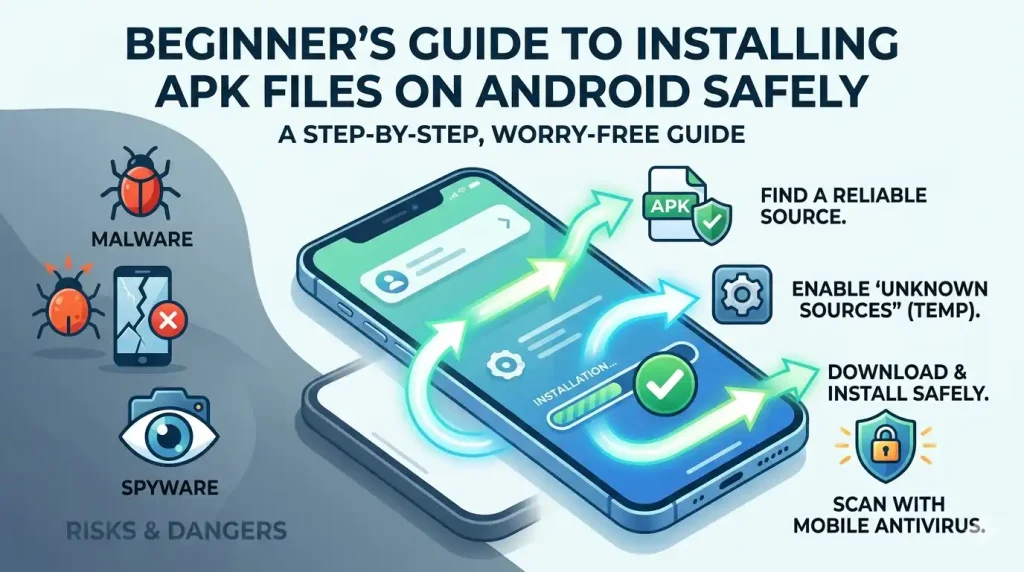
If your phone struggles with a game, check if a lighter version exists. For those new to the process, a Beginner APK Installation Guide can help you find and install the right versions.
Clear Game Cache (Fix Hidden Lag Issues)
Over time, games build up cache files. Sometimes these become corrupted and cause:
- stuttering
- slow loading
- crashes
To clear cache:
This does NOT delete your progress.
Use Stable Internet Connection for Online Games
If you’re playing online games, lag may not be performance — it may be network delay.
Make sure:
- you’re on a stable WiFi or strong data connection
- avoid switching networks during gameplay
- reduce background downloads
Network instability often feels like FPS lag, but it’s actually latency.
Simple Performance Routine (Do This Before Gaming)
If you want consistent performance, follow this quick routine:
- Clear recent apps
- Turn on Game Mode
- Check storage space
- Ensure stable internet
- Launch the game
Final Thoughts
Android gaming performance isn’t just about having the latest phone. In many cases, small changes in settings and habits can improve gameplay more than hardware upgrades.
Most lag issues come from background processes, high graphics settings, overheating, and poor device management.
Once you fix these, even average devices can run games smoothly. You don’t need advanced tools or risky apps — just smarter usage.